Install on PC to Access
1.
Go to your account URL.
(e.g. https://mycompany.showmypc.com)
(e.g. https://mycompany.showmypc.com)
2.
Click on "Install Service on this PC".
3.
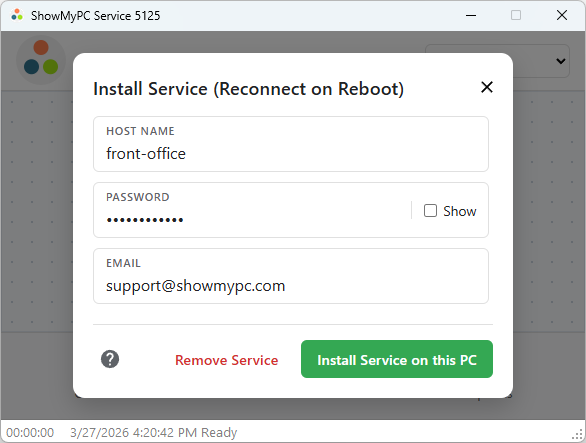
Save file and run. Select "Install Service".
4.
Provide Host Name, Your Email and Password.
5.
Click on "Install Service on this PC".
6.
Your computer is now ready to be accessed remotely.
Access/View your Remote PC using Windows Application
1.
Go to your account URL.
(e.g. https://mycompany.showmypc.com)
(e.g. https://mycompany.showmypc.com)
2.
Click on "Get Viewer" -> "Download and Run Viewer".
3.
Save file and run. Select "View All PCs".
4.
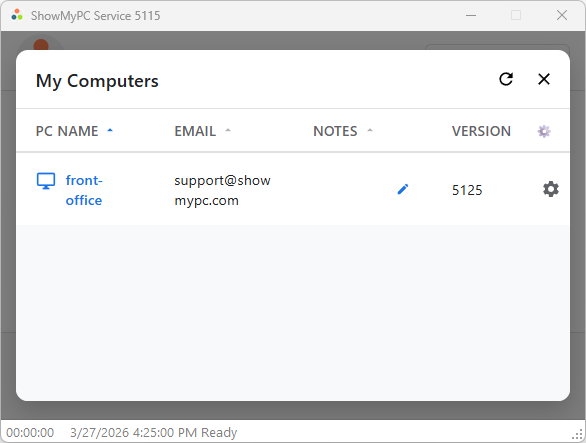
Select the PC you want to connect to from the list of computers.
5.
Enter the password saved during the installation and click on "Login".
6.
Viewer will start and you will be able to access the remote PC.
Access/View your Remote PC Using HTML Viewer
1.
Go to your account URL.
(e.g. https://mycompany.showmypc.com)
(e.g. https://mycompany.showmypc.com)
2.
Click on "Get Viewer".
3.
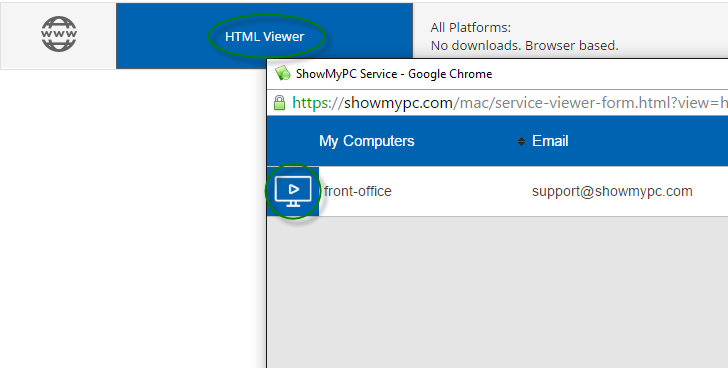
Click on "HTML Viewer".
4.
Select the PC you want to connect to from the list of computers.
5.
Enter password saved during the installation and connect.
6.
Viewer will start and you will be able to access the remote PC.